Showing posts with label Azure Cloud. Show all posts

Thursday, 19 August 2021

Find the last logon timestamp of users in Azure AD using PowerShell

Find the last logon timestamp of users in Azure AD using PowerShell


 get-ADUser - filter {enabled -eq $true} -properties LastLogonTimeStamp | Select-object Name,@{Name="Stamp"; Expression={[DateTime] ::FrmFileTime($_.LastLogontimeStamp).Tostring('yyy-mm-dd_hh:mm:ss')}} | Export-csv -Path C:\Users\Ravanan\lastlogon.csv 


PS: check in Dev before running on Prod

Monday, 20 January 2020

ADFS ERROR : ADMIN0017 ADFS ERROR : An error occured during an attempt to access the ADFS Configuration Database:


ADFS ERROR :  ADMIN0017
ADFS ERROR :  An error occured during an attempt to access the ADFS Configuration Database:

ADFS ERROR :  An error occured during an attempt to access the ADFS Configuration Database:
Error Message: ADMIN0017: An Exception Occured while Connecting to the configuration Service. the configuration service URL 'net.tcp://localhost:1500/policy' may be incorrect or the ADFS Windows service is not running.

I came across this error message in my lab set up as today as I was trying to add a new Relying party trust.

IDP page is also not working, there were no options in ADFS Consile in the left hand side.

I just restarted the ADFS service,

 IDP started working and the options to came up.

if this doesnt work, for WID service in services and ADFS service re-enter the password for te service account.

please comment if this helped you as well!


Wednesday, 1 January 2020

Azure AD Connect : PowerShell script to check the AD Connect Password Sync status and send E-mail to Admins


Hello All,

Here is the PowerShell script to send an email to DL about the status of the password sync in a CSV.

Here i have used Get-MsolCompanyInformation.
this gives details like,
last sync time
last password sync time
technical notification email
service account used to perform the sync.

this has to be run on the AD Connect server with elevated rights.
before  running, get-msolcompany information you need to connect to azure.
so open PowerShell with admin rights,
run Connect -msolservice ( in the pop up enter the Global admin credentials)
now run the below script, this store the csv file in the path and also send an email to the address specified.

You can also store the encrypted creds in the script. this is an easy way.

post your suggestions and thoughts in the comments


###########AD CONNECT  PASSWORD SYNC STATUS######## 

$fromaddress = "user@abc.com" 
$toaddress = "adminDL@abc.com" 
 $ADConnect = get-MsolCompanyInformation >\\"path to write the output in csv"\ADC.csv
 $body =   "Please Find the Sync Scheduler info of AD CONNECT attached in the CSV and take actions if necessary. THANK YOU!!" 
 $date = get-date
$Subject = " $date : Pls See the state of AD Connect Sync" 

$attachment = "\\"path of the folder whee teh output csv is located"\Documents\11\ADC.csv" 
$smtpserver = "SMTP.abc.com" 

#################################### 

$message = new-object System.Net.Mail.MailMessage $message.From = $fromaddress
$message.To.Add($toaddress)
###############################################


$message.Subject = $Subject
$attach = new-object Net.Mail.Attachment($attachment)
$message.Attachments.Add($attach)
$message.body = $body 

$smtp = new-object Net.Mail.SmtpClient($smtpserver)
$smtp.Send($message) 

Saturday, 21 December 2019

VERIFICATION OF SUCESSFULL INSTALLATION AND CONFIGURATION OF AD CONNECT

STEP 1 -Verifying in Azure AD Portal:

 Log into Azure AD portal with Global Admin Credentials
 In the home page click Azure Active directory => AD Connect in the left blade
 Check Sync Status and Last sync timings


STEP 2 – checking through PowerShell:

 Log into PowerShell in the AD Connect server with elevated rights,
 Run Get-ADSyncScheduler
 The Value of “SyncCycleEnabled” has to be “True”

SAMPLE:


PS C:\Windows\system32> get-Adsyncscheduler


AllowedSyncCycleInterval            : 00:30:00
CurrentlyEffectiveSyncCycleInterval : 00:30:00
CustomizedSyncCycleInterval         :
NextSyncCyclePolicyType             : Delta
NextSyncCycleStartTimeInUTC         : 12/19/2019 1:00:20 PM
PurgeRunHistoryInterval             : 7.00:00:00
SyncCycleEnabled                    : True
MaintenanceEnabled                  : True
StagingModeEnabled                  : True
SchedulerSuspended                  : False
SyncCycleInProgress                 : False


STEP 3 – checking User profiles:

 Log into Portal.azure.com with GA credentials
 Azure Active Directory => Users
 You should be able to see users with Source as Windows server AD.

run, (Get-ADSyncGlobalSettings).Parameters | Select Name,Value

in powershell with elevated rights. The above command will give you the details of your company`s Ad Connect configurations. It also has AD Connect version.Alternatively you can check from Control panel.


PS C:\Windows\system32> (Get-ADSyncGlobalSettings).Parameters | select Name,Value

Name                                                   Value
----                                                   -----
Microsoft.Synchronize.SynchronizationPolicy            Delta
Microsoft.Synchronize.StagingMode                      True
Microsoft.SynchronizationOption.JoinCriteria           AlwaysProvision
Microsoft.UserSignIn.DesktopSsoEnabled                 False
Microsoft.Synchronize.MaintenanceEnabled               True
Microsoft.OptionalFeature.ExportDeletionThresholdValue 500
Microsoft.Version.SynchronizationRuleImmutableTag      V1
Microsoft.SynchronizationOption.AnchorAttribute        mS-DS-ConsistencyGuid
Microsoft.OptionalFeature.DirectoryExtensionAttributes
Microsoft.OptionalFeature.FilterAAD                    False
Microsoft.GroupWriteBack.Forest
Microsoft.GroupWriteBack.Container
Microsoft.SynchronizationOption.UPNAttribute           userPrincipalName
Microsoft.Synchronize.SchedulerSuspended               False
Microsoft.OptionalFeature.DirectoryExtension           False
Microsoft.SynchronizationOption.CustomAttribute
Microsoft.Synchronize.TimeInterval                     00:30:00
Microsoft.Synchronize.ServerConfigurationVersion       1.4.32.0
Microsoft.SystemInformation.MachineRole                RoleMemberServer
Microsoft.AADFilter.AttributeExclusionList
Microsoft.OptionalFeature.DeviceWriteBack              False
Microsoft.OptionalFeature.AutoUpgradeState             Suspended
Microsoft.Synchronize.NextStartTime                    Thu, 19 Dec 2019 13:00:20 GMT
Microsoft.Synchronize.RunHistoryPurgeInterval          7.00:00:00
Microsoft.OptionalFeature.GroupFiltering               False
Microsoft.ConnectDirectories.WizardDirectoryMode       AD
Microsoft.Synchronize.SynchronizationSchedule          True
Microsoft.OptionalFeature.ExchangeMailPublicFolder     False
Microsoft.OptionalFeature.UserWriteBack                False
Microsoft.OptionalFeature.ExportDeletionThreshold      True
Microsoft.DeviceWriteBack.Forest
Microsoft.OptionalFeature.DeviceWriteUp                True
Microsoft.OptionalFeature.HybridExchange               False
Microsoft.AADFilter.ApplicationList
Microsoft.DirectoryExtension.SourceTargetAttributesMap
Microsoft.UserWriteBack.Forest
Microsoft.DeviceWriteBack.Container
Microsoft.UserWriteBack.Container
Microsoft.UserSignIn.SignOnMethod                      PasswordHashSync
Microsoft.OptionalFeature.GroupWriteBack               False


Connect-msolservice   // connect to Ms online service , use Global Admin  credentials
Get-MsolCompanyInformation


gives info about last sync cycle, password syn enabled or not etc


Friday, 22 February 2019

Auto Cert Rollover in ADFS and setting the new token signing as primary and changing the old one as secondary | Renew federation certificates for Office 365 and Azure Active Directory


Renew federation certificates for Office 365 and Azure Active Directory

Auto Cert Rollover in ADFS and setting the new token signing as primary and changing the old one as secondary 

If you get a token signing certificate when the old certificate is expiring, the new certificate will sitting only as "secondary" until the promotion threshold is met .


you cannot change the cert as Primary. It will be grayed out.


Step 1: Check the AutoCertificateRollover state


get into the Primary ADFS server


run   Get-Adfsproperties in PowerShell with elevated rights.


check if autocertificateRollover is set to "true"


here the threshold is 5 days so the new certificate will become as Primary 5 days before the expiry of the original certificate.

Step 2: Confirm that AD FS and Azure AD are in sync


Install-Module MSOnline
Connect to Azure AD using the MSOnline PowerShell-Module.Import-Module MSOnlineConnect-MsolService
Check the certificates configured in AD FS and Azure AD trust properties for the specified domain.Get-MsolFederationProperty -DomainName <domain.name> | FL Source, TokenSigningCertificate
If the thumbprints in both the outputs match, your certificates are in sync with Azure AD.


if not run Update-MSOLFederatedDomain –DomainName <domain>


Renew the token signing certificate automatically (recommended) 


You don't need to perform any manual steps if both of the following are true:You have deployed Web Application Proxy, which can enable access to the federation metadata from the extranet.You are using the AD FS default configuration (AutoCertificateRollover is enabled).Check the following to confirm that the certificate can be automatically updated.


1. The AD FS property AutoCertificateRollover must be set to True. This indicates that AD FS will automatically generate new token signing and token decryption certificates, before the old ones expire.


2. The AD FS federation metadata is publicly accessible. Check that your federation metadata is publicly accessible by navigating to the following URL from a computer on the public internet (off of the corporate network):https://(your_FS_name)/federationmetadata/2007-06/federationmetadata.xmlwhere (your_FS_name)is replaced with the federation service host name your organization uses, such as fs.contoso.com. If you are able to verify both of these settings successfully, you do not have to do anything else.


Example: https://fs.contoso.com/federationmetadata/2007-06/federationmetadata.xml


REFER:


https://blogs.msdn.microsoft.com/vilath/2015/09/02/how-to-update-certificates-for-ad-fs-3-0/

Thursday, 21 February 2019

How to delete a managed Domain in Azure.

How to delete a managed Domain in Azure.


Some time we might be in a need to delete the managed domain in Azure. Follow the below mentioned steps to delete the managed Domain or custom Domain. However you will not be able to delete the Primary domain (abc.onmicrosoft.com) as it is the name of your directory abc.onmicrosoft.com).


  • Azure Active Directory => Custom Domain names
  • Click on the custom domain name => Click Delete


To delete a custom domain name, you must first ensure that no resources in your directory rely on the domain name.


You can’t delete a domain name from your directory if:


  • ·        Any user has a user name, email address, or proxy address that includes the domain name.
  • ·        Any group has an email address or proxy address that includes the domain name.
  • ·         Any application in your Azure AD has an app ID URI that includes the domain name.

You must change or delete any such resource in your Azure AD directory before you can delete the custom domain name.


Getting error in ADFS proxy 2.0 "Encountered error during federation passive request"

Some customers who are using 2008 server for ADFs proxy may sometime get errors
  "Encountered error during federation passive request"

This usually happens when they change the certificate which is about to expire.

Usually for this kind of issue where the ADFS service and metadata when not accessible extenally we check for certificate bindings

we will be going to PowerShell  with admin rights

run
get-Webapplicationproxysslcertificate
compare the thumbprint with ADFS

but in 2008 R2 we don't have this option to run PS command

so run the ADFS proxy 2.0 wizard that will be fixing the most of the issues.


Friday, 15 February 2019

Azure MFA Unexpected-Failed Result - MFA App Password calls being rejected with bad username/password

My users that use App passwords for the native mail client are not getting mail.


there has been many customers that are saying app passwords are not working with azure.


The back end team has fixed the issue. If you still have problem create a support ticket in Azure portal.


Tuesday, 11 December 2018

how to find the ADFS Service name ADFS 2.0 or 3.0

This small article talks about finding the ADFS Service name

simply open the powershell with elevated rights in the ADFS server

run the command " Get-Adfsproperties"

in the result check for the host name, you can find something like  "adfs.fabrikam.com"


In the GUI mode open the adfs  mmc console and click on ADFS in the left.

So that in the right you can find an option called " Edit Federation Service Properties"

when you click on that you can find the Federation Service name


Wednesday, 28 November 2018

Azure SQL Connectivity and Service Management Errors || Azure Storage Service Down - West US 2 - Applying Mitigation

 Azure SQL Connectivity and Service Management Errors ||

Azure Storage  Service Down - West US 2 - Applying Mitigation

As per the Azure Status site,


Starting at 04:20 UTC on 28 Nov 2018 a subset of customers in West US 2 may experience issues connecting to Storage resources hosted in this region. A subset of customers using resources dependent on Storage may also see impact. Engineers have identified a recent deployment as the potential root-cause and are in the process of applying a fix for this issue. The next update will be provided within 60 minutes, or as events warrant.

REGION AFFECTED:

WEST US 2 


Tuesday, 27 November 2018

Azure MFA failing with Error Message "Sorry, we're having trouble with verifying your account. Please try again" Today 27th November 2018


###Update on 28th November 2018

The Engineering team has fixed the issue and Identified the Preliminary issue.

According to the official Azure Status site the reason was "a DNS issue triggered a large number of sign-in requests to fail, which resulted in backend infrastructure becoming unhealthy. "


MS also told that they have fixed the issue and observed a decrease in the MFA failure count. We are still waiting for the RCA..


==========================================

27th November 2018

Azure MFA is failing again today 27th November 2018 with the Error messageSorry, we're having trouble with verifying your account. Please try again" 

{no Sno SMS sent, no push notification to the app, TOTP code doesn’t work)MS sent, no push notification to the app, TOTP code doesn’t work}

Azure Site says all the regions of America, APAC, and Europe is affected.


Outage details in Azure Site :
Starting at 14:25 UTC on 27 Nov 2018 a subset of customers using Multi-Factor Authentication may experience intermittent issues signing into Azure resources, such as Azure Active Directory, when Multi-Factor Authentication is required by policy. Impacted customers may encounter timeout errors. Engineers are aware of this issue and are actively investigating mitigation options. The next update will be provided in 60 minutes, or as events warrant.


The MS team is working on this.

The regions that are affected are,


Oregon

North Virginia

Dublin

Tokyo

Tokyo
BrazilNorth EuropeSouth East AsiaWest Europe SydneyDallasTXHong KongHong KongSouth Central USEast US2SingaporeNorth Central USFrankfurtNorth CaliforniaChicagoSydneyNorth VirginiaEast JapanSouth India


we are following the MS Internal Sites. An Incident with Priority has been raised and MS team is working on this.

============================================

###Update on 28th November 2018

The Engineering team has fixed the issue and Identified the Preliminary issue.

According to the official Azure Status site the reason was "a DNS issue triggered a large number of sign-in requests to fail, which resulted in backend infrastructure becoming unhealthy. "


MS also told that they have fixed the issue and observed a decrease in the MFA failure count. We are still waiting for the RCA..


Thursday, 8 November 2018

In the Synchronization Service Manager, any import or export operation with on-premises AD fails with no-start-credentials error. ==(or)== Under Windows Event Viewer, the application event log contains an error with Event ID 6000 and message 'The management agent "abc.com" failed to run because the credentials were invalid'.

If you get any of the following error messages in AAD Connect try the following steps mentioned here.


Error Message:


In the Synchronization Service Manager, any import or export operation with on-premises AD fails with no-start-credentials error.

Under Windows Event Viewer, the application event log contains an error with Event ID 6000 and message 'The management agent "abc.com" failed to run because the credentials were invalid'.


Steps to be followed:


Start the Synchronization Service Manager (START → Synchronization Service).

go to the “Connectors” tab and right click on the connectors name

Under Actions, select Properties.

In the pop-up dialog, select Connect to Active Directory Forest:

Enter the new password

Click OK to save the new password and close

Restart the Azure AD Connect Synchronization Service under Windows Service Control Manager. This is to ensure that any reference to the old password is removed from the memory cache.


Type in the comment if it was helpful or not.


Thanks for Reading :) 

//
Senko


Insufficient access rights to perform the operation error in Azure AD Connect

Insufficient access rights to perform the operation error in Azure AD Connect


are  you're getting Insufficient access rights to perform the operation in your Azure AD Connect synchronization logs? 


Try the following.

1)check for the  latest version of Azure AD Connect


2)If you're syncing passwords, make sure that your sync service account has Replicate Directory Changes and Replicate Directory Changes All permissions in your on premises Active Directory
Make sure that your sync service account has write permissions on your sourceAnchor attribute (which is most likely set to ms-ds-consistencyGuid). You can do that either using the user interface, or PowerShell, which is easier:
$accountName = "DOMAINNAME\USERNAME" #[this is the account that will be used by Azure AD Connect Sync to manage objects in the directory.

$ForestDN = "DC=DOMAINNAME,DC=SOMETHING"
$cmd = "dsacls '$ForestDN' /I:S /G '`"$accountName`":WP;ms-ds-consistencyGuid;user'"
Invoke-Expression $cmd

3)Make sure that inheritance is turned on for the AD objects that get errors in the synchronization logs. 

  • Open Active directory Users and Computers
  • Enable the Advanced features in the View settings and,
  • Open up the user object that can't sync.
  • Go to the security tab and then into advanced
  • Check to make sure the box is checked to inherit permissions.


Let me know if this helps in comment.

Friday, 31 August 2018

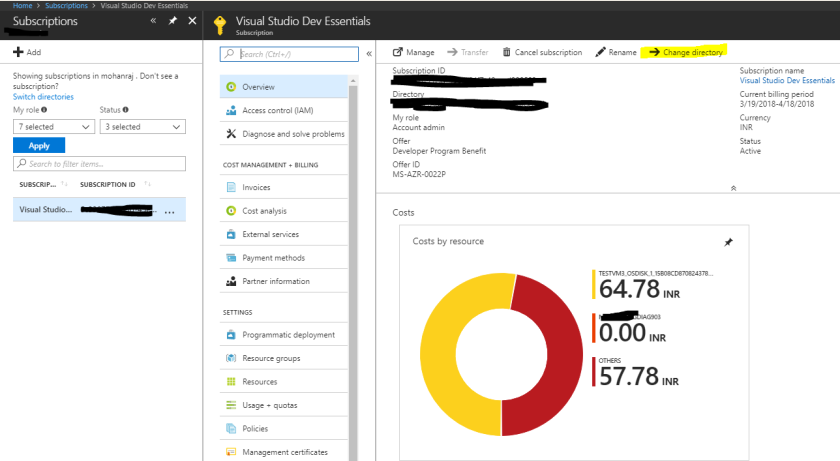
How to Change the Azure Subscription from One Tenant to Other Tenant


Follow the below steps to change the  Azure Subscription from One Azure Tenant  to Other.


Log into the tenant (tenant.onmicrosoft.con) with Service admin or Account Admin rights.

In all services go to subscriptions => select the subscription => Over view => click on change directory option.


Then you can choose the Directory from the pull down and click on Change

NOTE: To choose the Directory you should also be a  member of the Destination tenant.


Tuesday, 26 June 2018

Create new Azure Active Directory or Azure Tenant

How to create an Azure AD  or Azure Tenant 

First create a outlook account
Sign in with that account
Reach this URL to name your tenant

https://portal.azure.com/#create/Microsoft.AzureActiveDirectory


Use an existing Azure AD tenant

Many developers already have tenants through services or subscriptions that are tied to Azure AD tenants such as Office 365 or Azure subscriptions. To check if you already have a tenant, sign in to the AzurePortal with the account you want to use to manage your application and check the upper right corner where your account information is shown. If you have a tenant, you'll automatically be logged into it and you'll see the tenant name directly under your account name. If you hover over your account name on the upper right-hand side of the Azure portal, you will see your name, email, directory and tenant ID (a GUID), and your domain. If your account is associated with multiple tenants, you can select your account name to open a menu where you can switch between tenants. Each tenant has its own tenant ID.


Create a new Azure AD tenant

If you don't already have an Azure AD tenant or want to create a new one, you can do so using the directory creation experience in the Azure portal. The process will take about a minute, and in the end you'll be prompted to navigate to your newly created tenant.


NOTE:
If you need to find the tenant ID, there are multiple ways to find this info. You can hover over your account name to get the tenant ID or you can select Azure Active Directory > Properties > Directory ID in the Azure portal.


Reference: 
https://docs.microsoft.com/en-us/azure/active-directory/develop/active-directory-howto-tenant#create-a-new-azure-ad-tenant

Thursday, 17 May 2018

How to delete application in Azure AD

Sometimes we may test App registrations in Azure AD.
Once we have tested an application we will be set to delete it.
Admins might face some difficulties in deleting it.

Here are the steps to delete.


·         Log into Portal.azure.com with Global Admin credentials

·         Azure Active Directory  => App registrations => Select the  Application that you want to delete => Manifest =>Edit the attribute “"availableToOtherTenants"  to false.  

       Refer to the image below


 வாழ்க்கை முழுவதைம் அள்ளிச்சென்ற  பின்,   கனவில்  மட்டும்  வந்து   ஏன் இன்பம்  காட்டுகிறாய்... கனவு கலைந்ததும்  உண்மை  வாட்டுகிறது... கனவாவத...